Overview
The existing CRM.Web update theme is considered dated. Consequently, a new modern theme has been introduced to align with the current corporate brand standards.
This guide provides instructions for enabling the modern theme within CRM.Web
Before you begin
- You will need:
- Aurea CRM version 15.25.2 or newer must be installed.
Change the theme
By default, Aurea CRM utilizes the update theme. To implement the modern theme, follow the steps detailed below.
Step 1: Change the theme in the CRM.Designer
- Open the CRM.Designer and select the appropriate configuration.
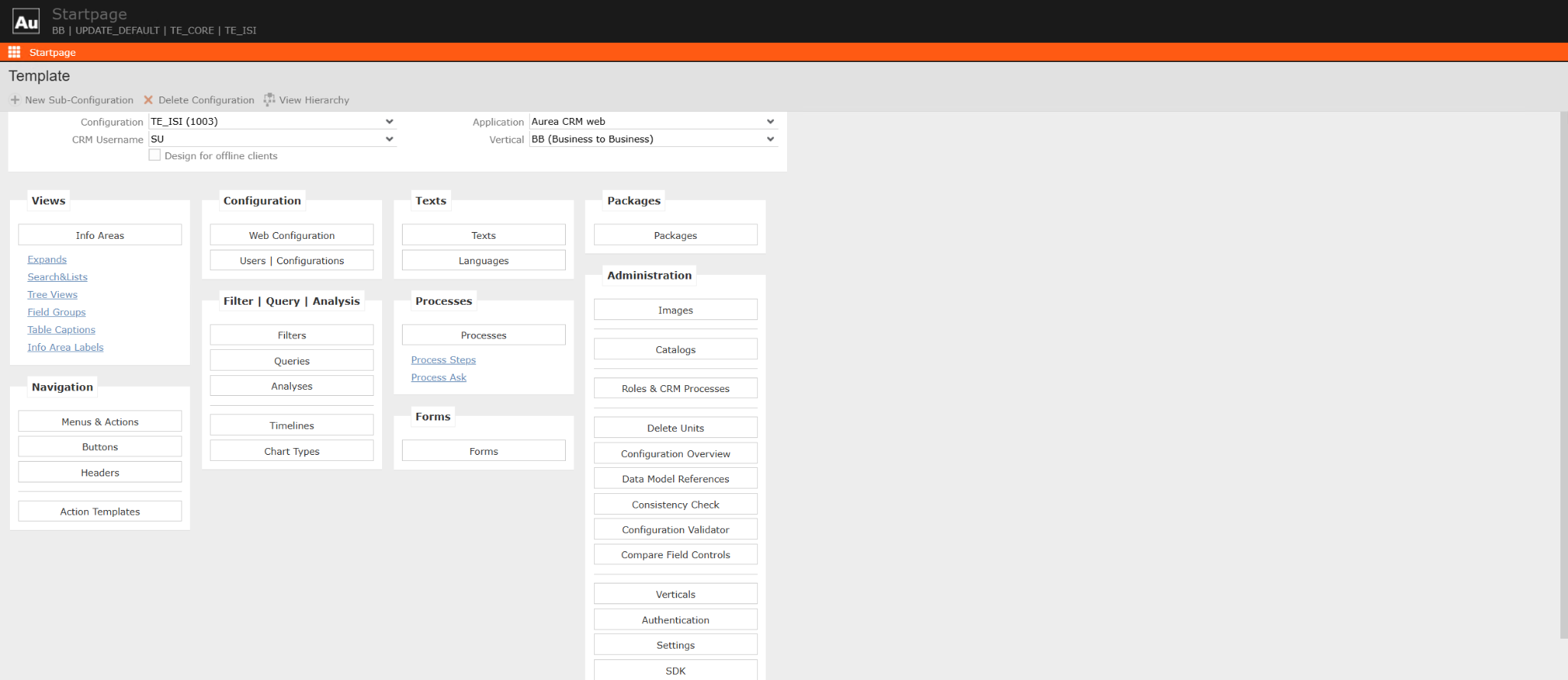
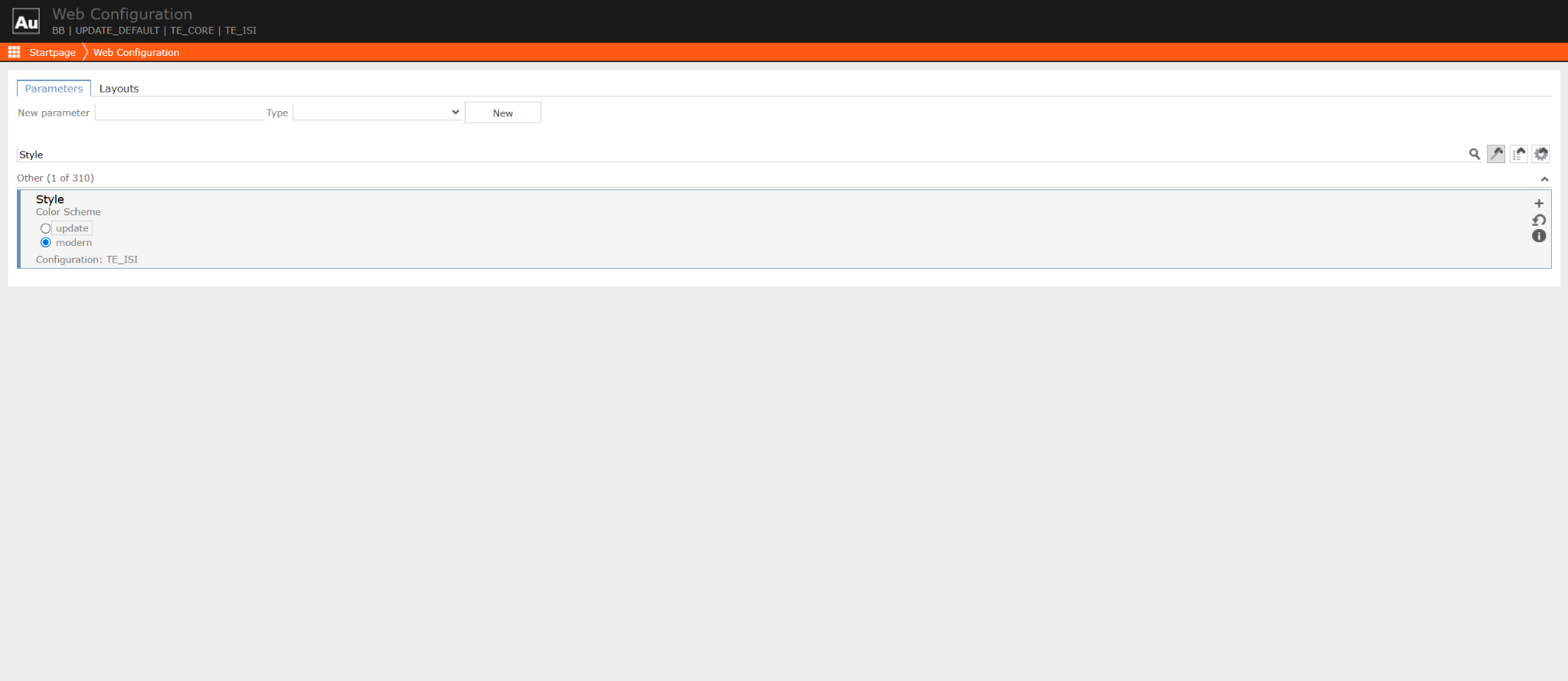
- Navigate to "Web Configuration," search for "Style," and select "modern."
Step 2: OPTIONAL: Change the default login screen
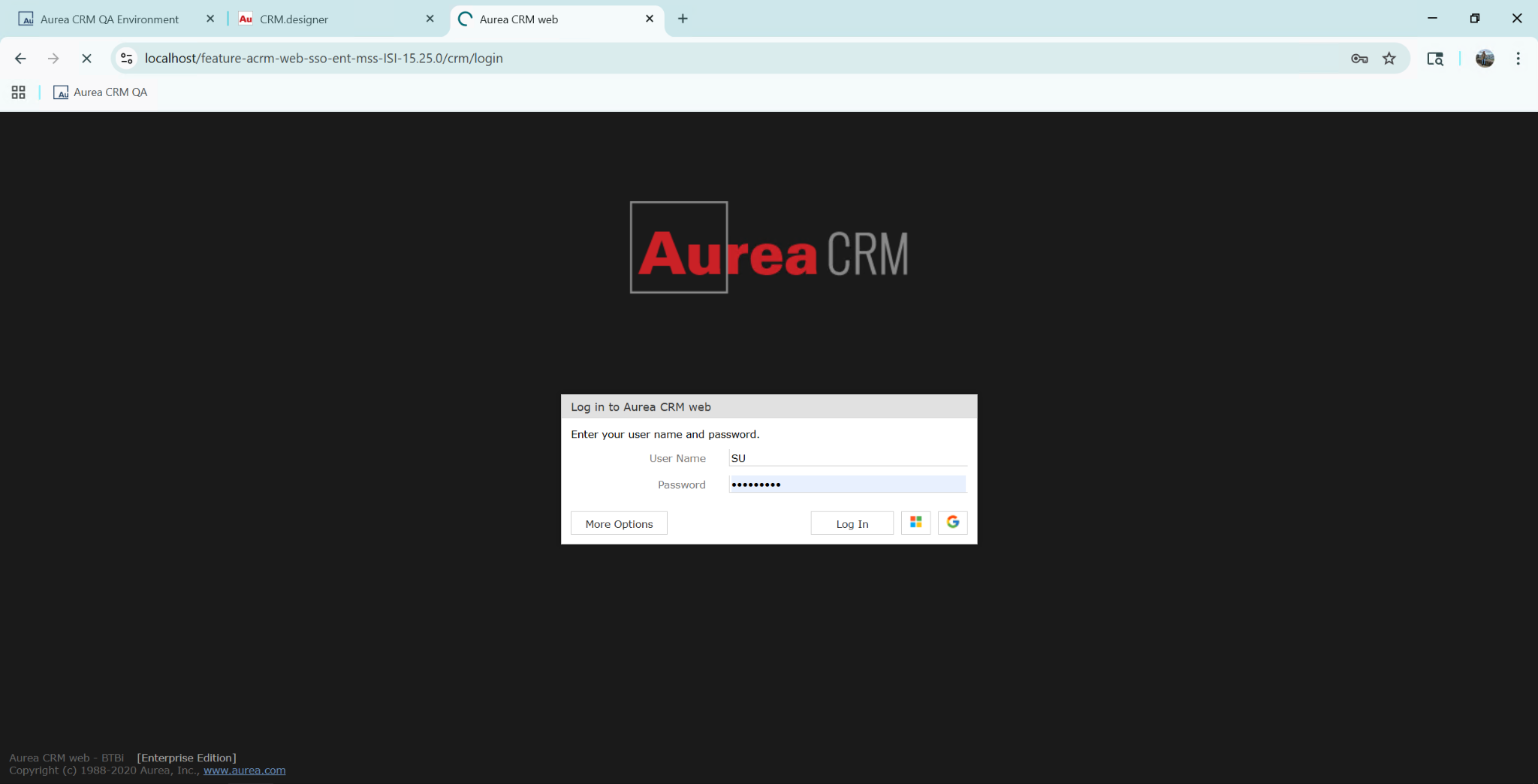
The standard login screen is utilized by default.
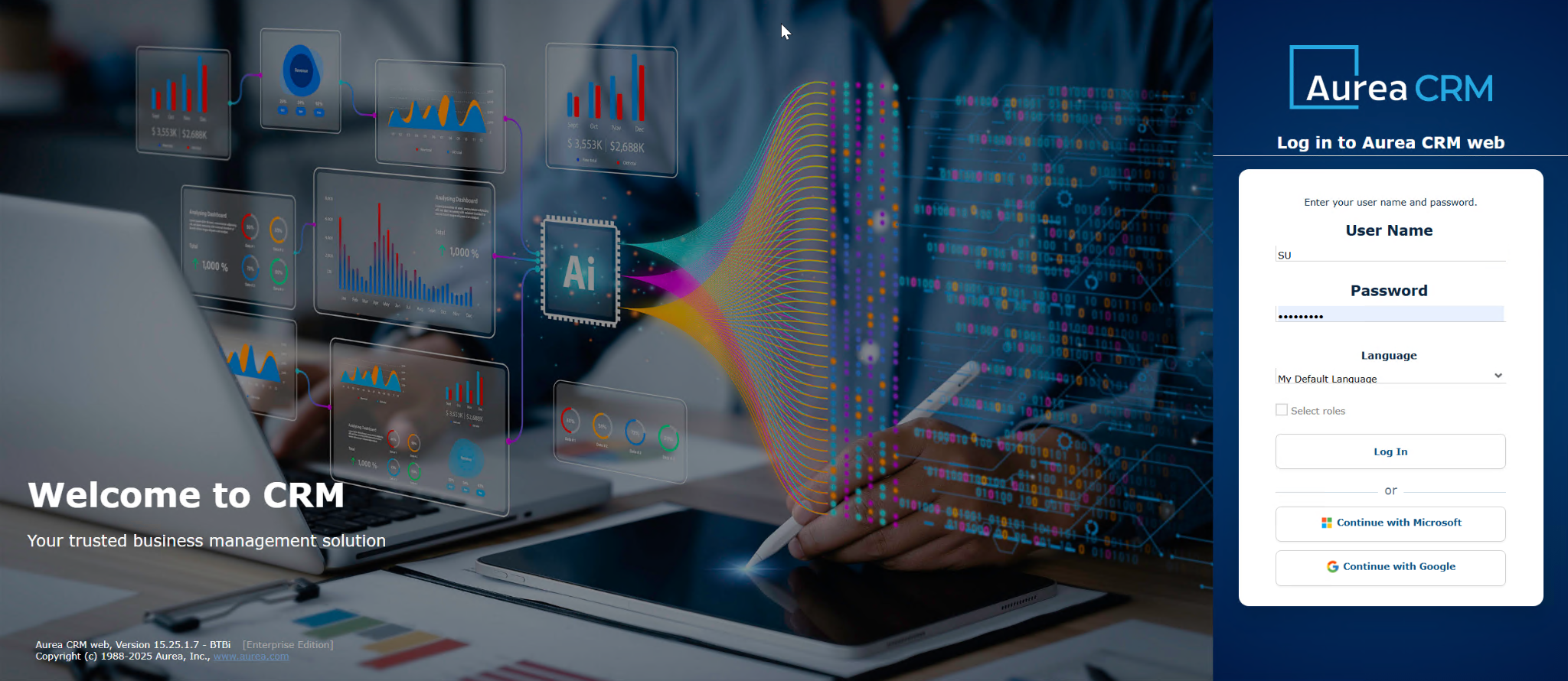
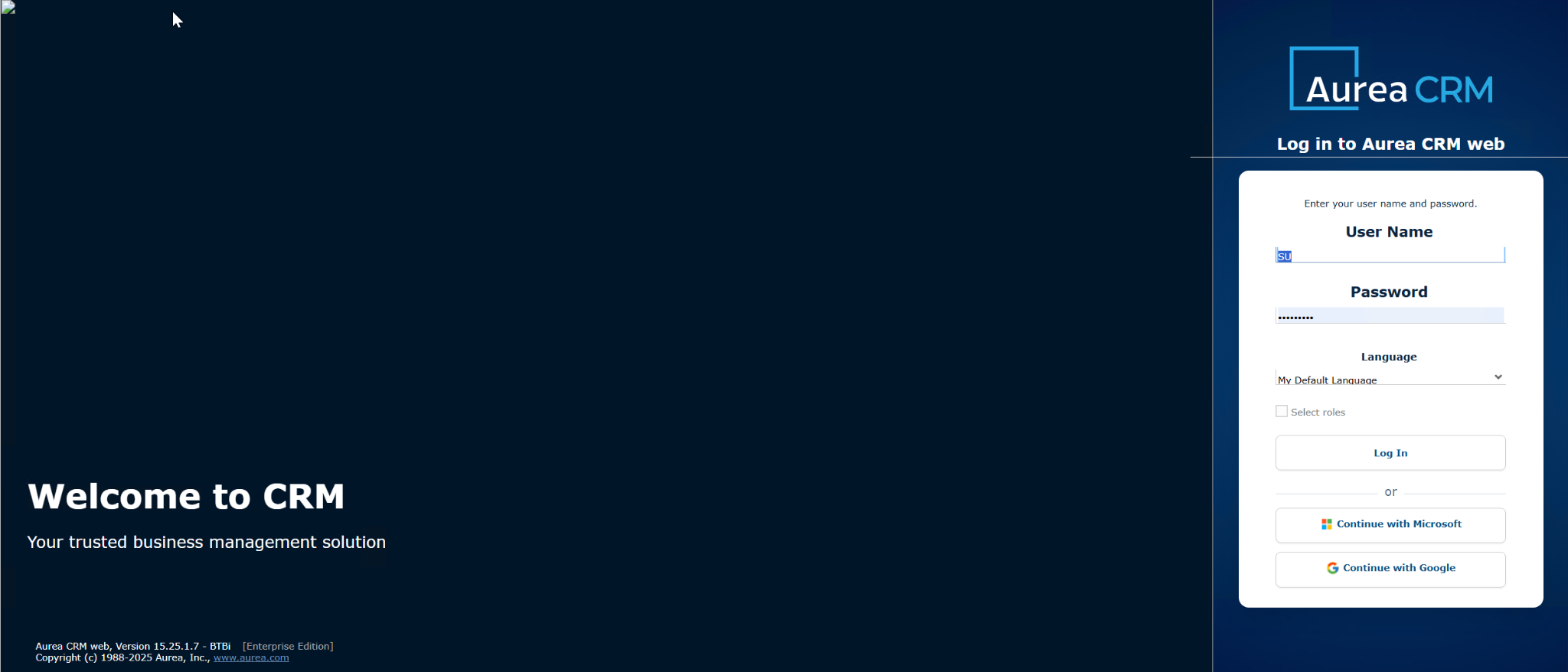
However, it is possible to replace it with the new modern login screen.
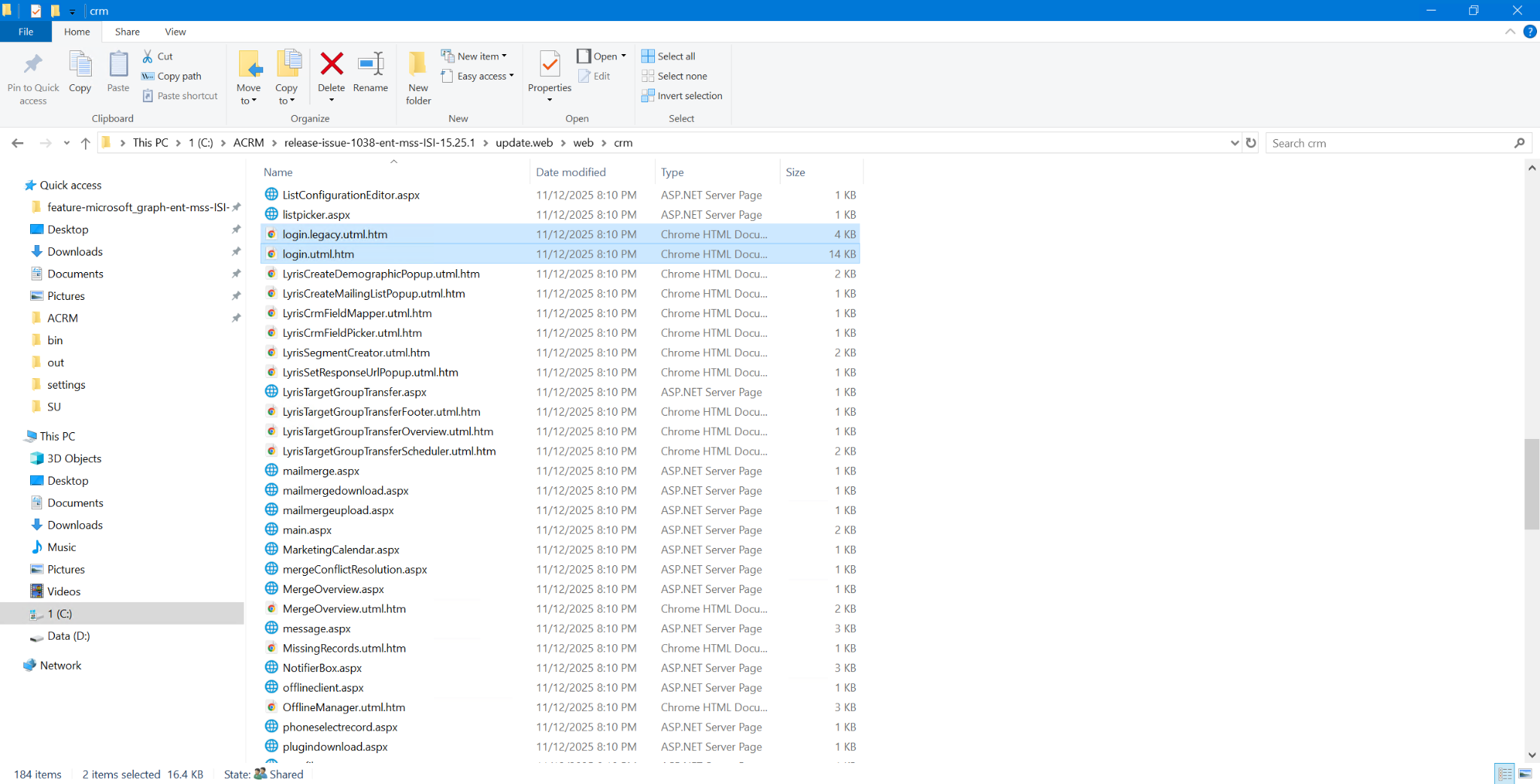
To change the default login page, navigate to the update.web\web\crm folder within the CRM.Web installation directory. Back up the existing login.utml.htm file (e.g., rename it to
login.legacy.utml.htm). Subsequently, rename login.modern.utml.htm to login.utml.htm, as illustrated in the following screenshot.
Step 3: Recycle the application pool
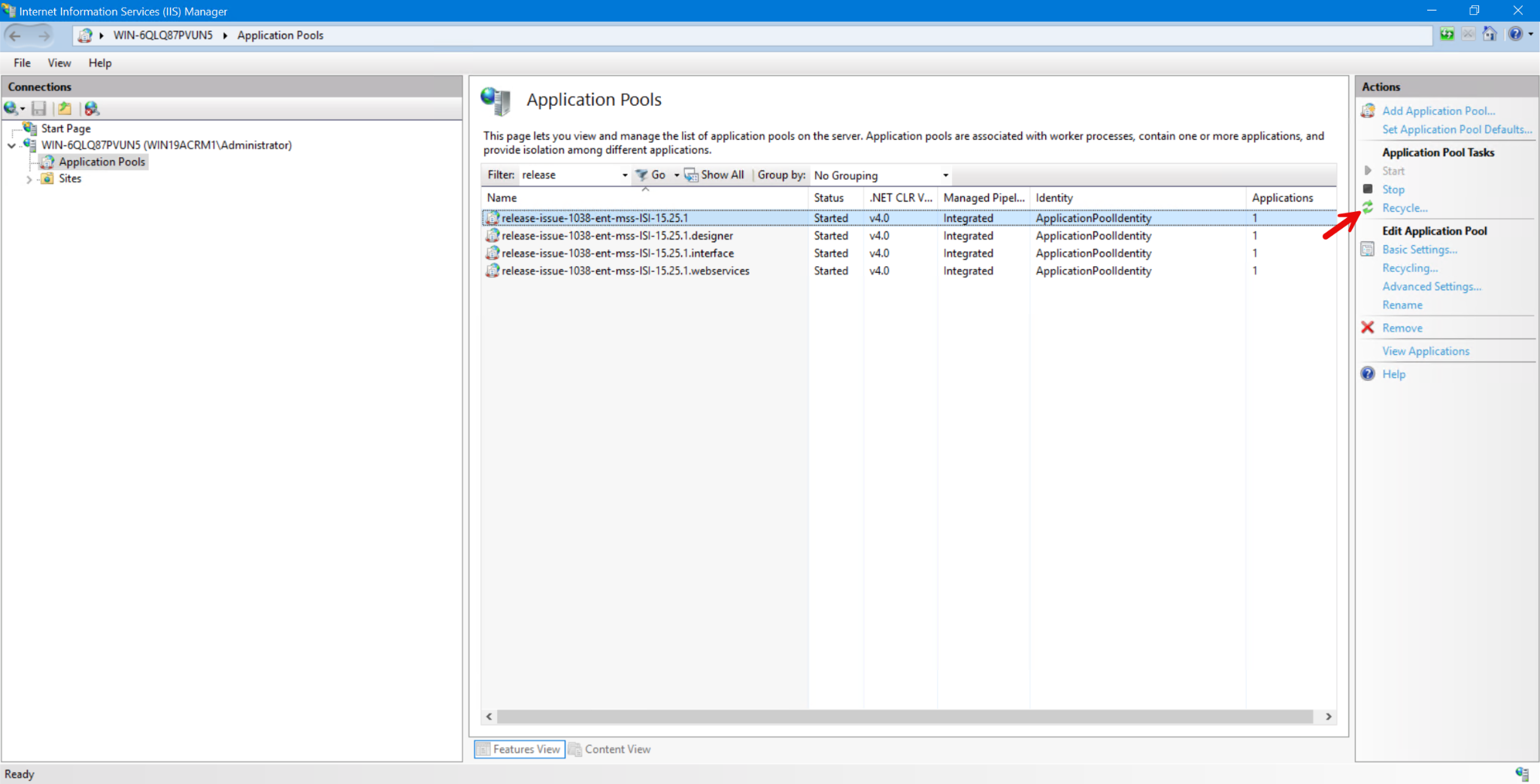
- Open Internet Information Services (IIS) Manager on the installation server.
- Navigate to "Application Pools."
- Recycle the Application Pool associated with Aurea CRM.Web.
Note: After recycling the application pool, the modern login page image may temporarily disappear due to the clearing of the image cache. This can be resolved by performing a hard refresh of the browser (CTRL + R).
Csaba Daniel
Comments